
Danny Briskin, Senior Software Developer in Test
Navigating BDD: Connecting Feature Files to Code with Ease
In the world of software testing, we use something called Gherkin. It is a way to write test steps in plain English (or many other languages) so that everyone can understand what the software is supposed to do.
But there is a catch: those plain English steps have to “talk” to real computer code. For a developer, finding which piece of code belongs to which step can be like hunting for a needle in a haystack. I built Gherkin Step Navigator to make that search disappear.
Two Worlds, One Engine
The primary hurdle in BDD (Behavior Driven Development) tooling is that human language is messy, while computer code is very strict.
1. The Built-In Language Engine
Gherkin is unique because it is written in natural human languages. To make this extension truly universal, I didn’t just focus on English. The extension comes pre-loaded with a comprehensive list of keywords for over 70 different languages.
Whether you are writing a test in English (Given), Spanish (Dada), or German (Angenommen), the extension already knows what those words mean. It uses this internal dictionary to instantly recognize a test step as soon as you type it, allowing the navigation to work across global teams without any extra setup.
2. Finding the Code
On the other side, we have the programming code. Developers use special “tags” or “labels” to link code to a step. My extension is designed to recognize these labels across different languages. Whether you are using C#, Java, or Python, the engine knows how to find where the work happens.
Deep Dive: The Three Pillars of the Architecture
The extension is built on three main systems that work together to make navigation feel like magic: the Indexer, the Cache, and the Matcher.
1. The Background Indexer
When you open a project, you don’t want to wait for minutes while the tool “loads.”
- Smart Scanning: The Indexer runs in the background. It quickly scans your project files for those special code labels.
- Resource Awareness: It is smart enough to ignore “junk” folders like
node_modulesor build output folders. This prevents your computer from slowing down or getting “stuck” on thousands of irrelevant files. - Real-Time Updates: If you add a new step or change an old one, a “file watcher” tells the Indexer to update that specific file immediately. Your navigation map is always up to date.
2. The In-Memory Step Cache
The Cache is where the “map” of your project lives.
- Instant Lookup: Instead of searching your hard drive every time you click a step, the extension looks at a fast list in your computer’s memory. This list says: “This specific step name lives in this file, on this exact line.”
- Efficiency: By storing this map in memory, the “Go to Definition” action becomes nearly instantaneous, even in massive projects with thousands of steps.
3. The Intelligent Matcher
Steps often have variables, like numbers or names (for example: “I have 5 items”, “User navigates to ‘Orders’ page”).
- Pattern Recognition: The Matcher is the brain that understands these patterns. It converts common human-readable patterns into a language the computer can search quickly.
- Accuracy: It ensures that a step in your feature file finds the correct code, even if the code uses complex “regex” or placeholders.
Precision Navigation: No More “Drifting”
One of the most annoying bugs in other tools is “navigation drift” - where you click a step, and the editor takes you to the right file, but the wrong line.
- Finding the Spot: Most tools just look for the line number. This extension calculates the exact position of the text, counting every character.
- Handling Systems: Different computers save files in different ways (specifically how they handle “enters” or line breaks). This extension handles both Windows and Mac styles perfectly.
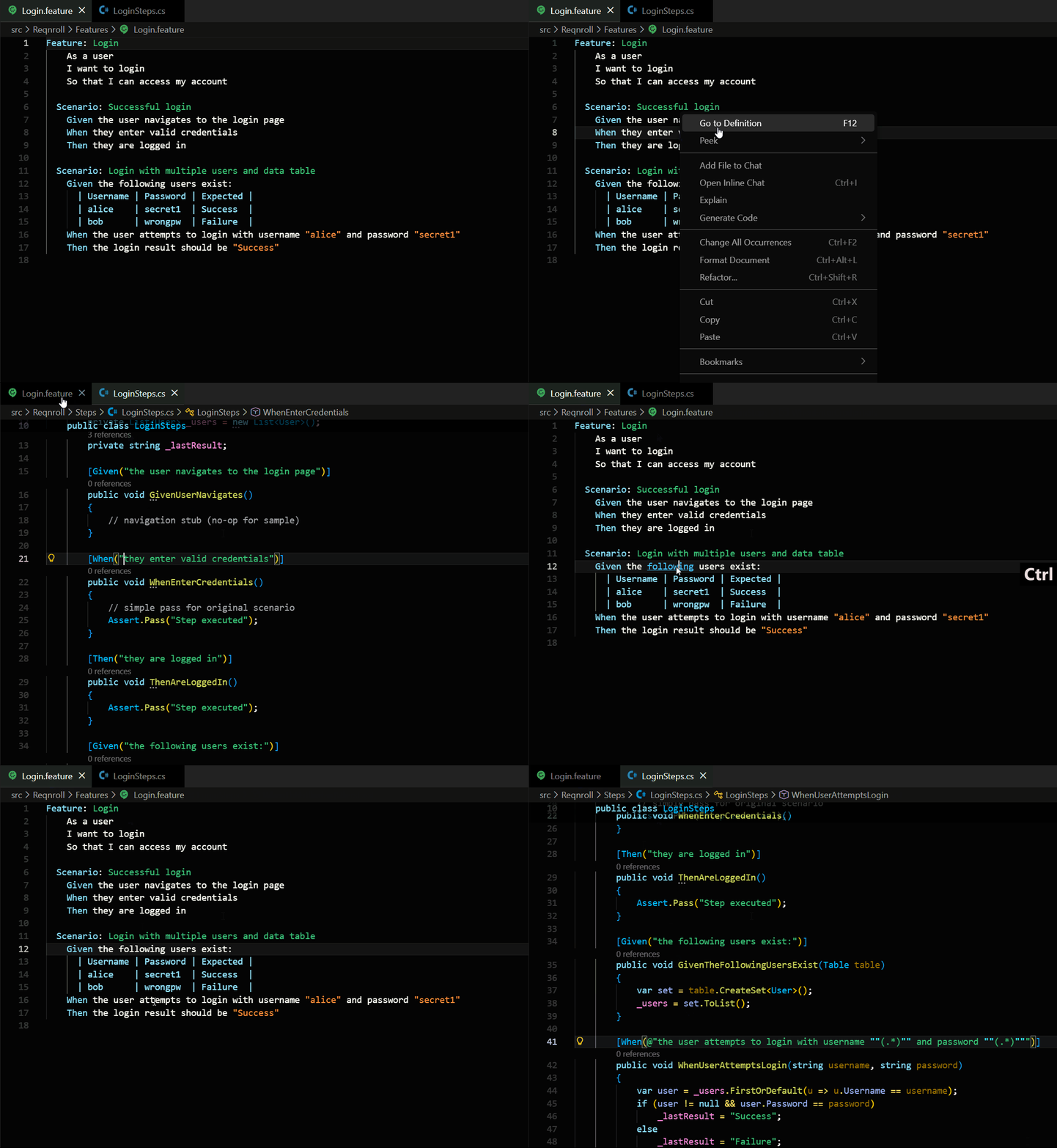
- The Control-Click: Because of this precision, you can simply Control-Click (or press F12) on any step. The extension checks its map and takes you straight to the implementation.
Keeping Things Neat: Formatting and Colors
I also wanted to make sure the test files themselves stayed easy to read.
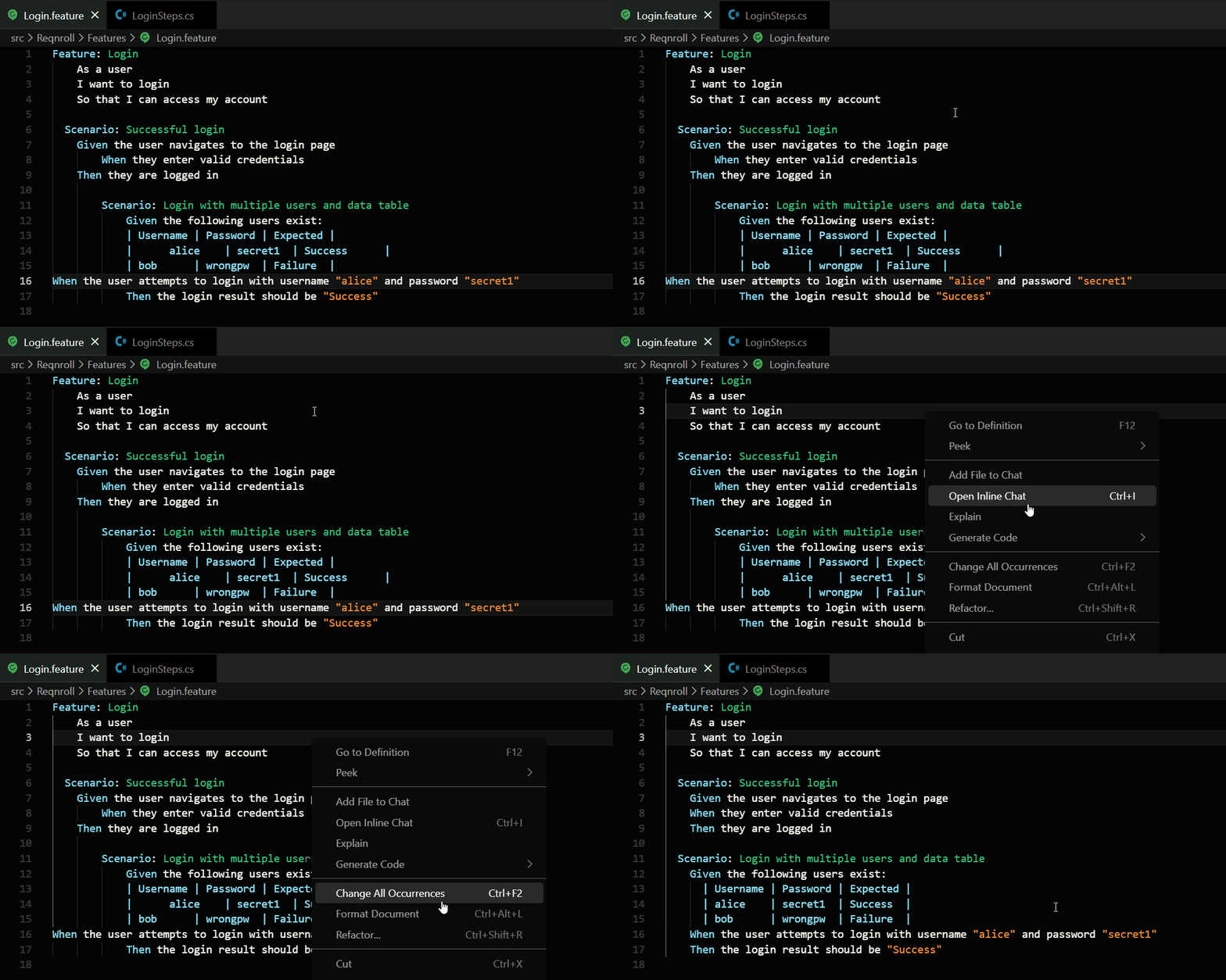
- Beautiful Tables: If you have a table of data, the extension automatically measures your columns and lines up all the pipes (
|) so they look like a clean spreadsheet. - Great Colors: It uses colors to highlight variables, tags, and comments. This makes it easy to spot mistakes before you even run your tests.
- Perfect Spacing: It fixes the indentation of your text (moving Scenarios and Steps to the right spots) so everything looks professional.
Gherkin Step Navigator is out now on the VS Code Marketplace. If you want to help me improve it, come visit the GitHub project.